> ## Documentation Index
> Fetch the complete documentation index at: https://docs.appinion.pt/llms.txt
> Use this file to discover all available pages before exploring further.
# Google Cloud Console
> Make sure that you are with the correct profile.
1. Select **Menu - IAM & Admin - Create a Project** and enter the Project Name. Then hit the **Create** button.
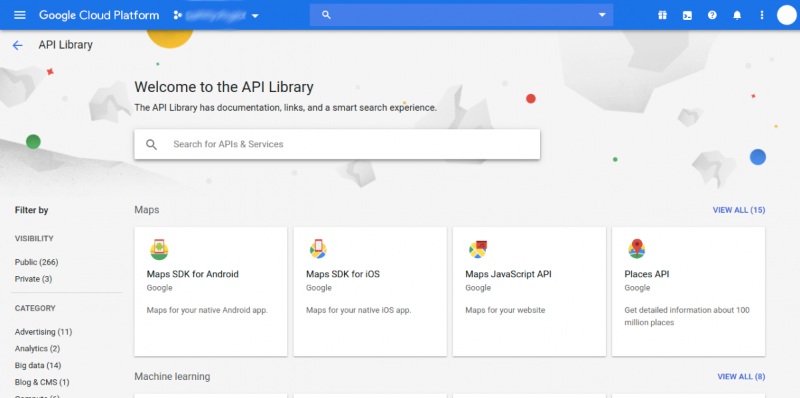
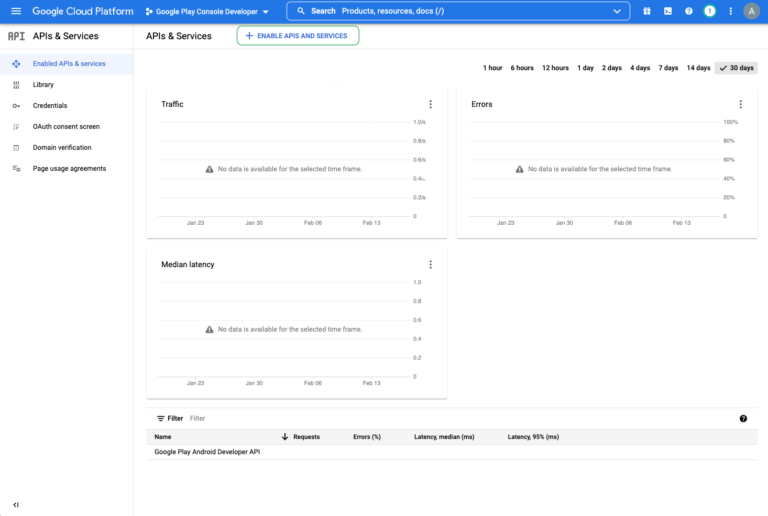 Search for the following API’s and make sure they are all **ENABLED**:
* \*\*Google Cloud APIs \*\*(lets us authenticate you)
* \*\*Google Cloud Storage \*\*(allows us to access historical review data)
* \*\*Google Cloud Storage JSON API \*\*(also allows us to access historical review data)
* \*\*Google Play Android Developer \*\*(allows us to access current review data)
Search for the following API’s and make sure they are all **ENABLED**:
* \*\*Google Cloud APIs \*\*(lets us authenticate you)
* \*\*Google Cloud Storage \*\*(allows us to access historical review data)
* \*\*Google Cloud Storage JSON API \*\*(also allows us to access historical review data)
* \*\*Google Play Android Developer \*\*(allows us to access current review data)
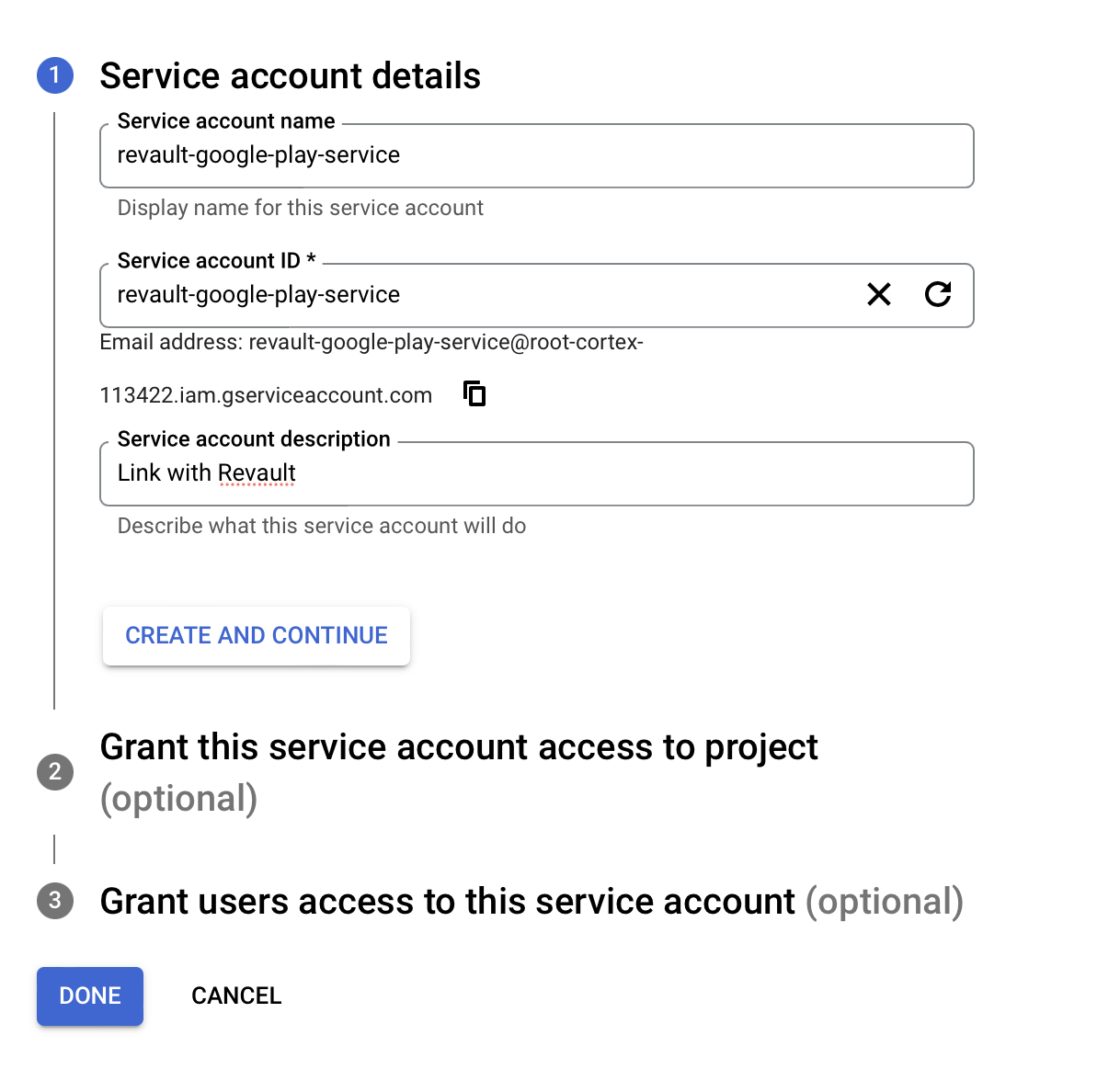
 1. Select **Menu - IAM & Admin - Service accounts** and hit **Create Service Account**.
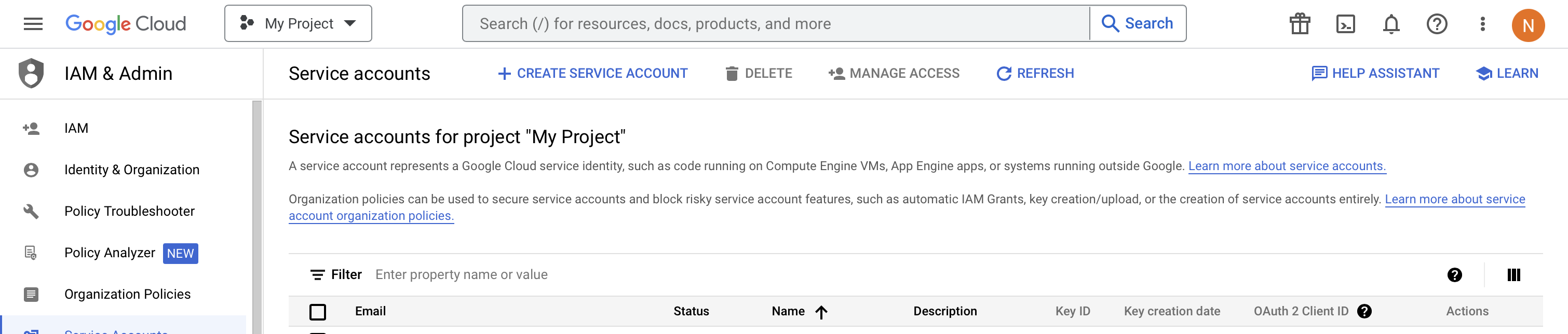 2. Give the service account a name (this can be anything you want, but it’s a good idea to name it something to do with Appinion so you know what it is in future), and then click Create.
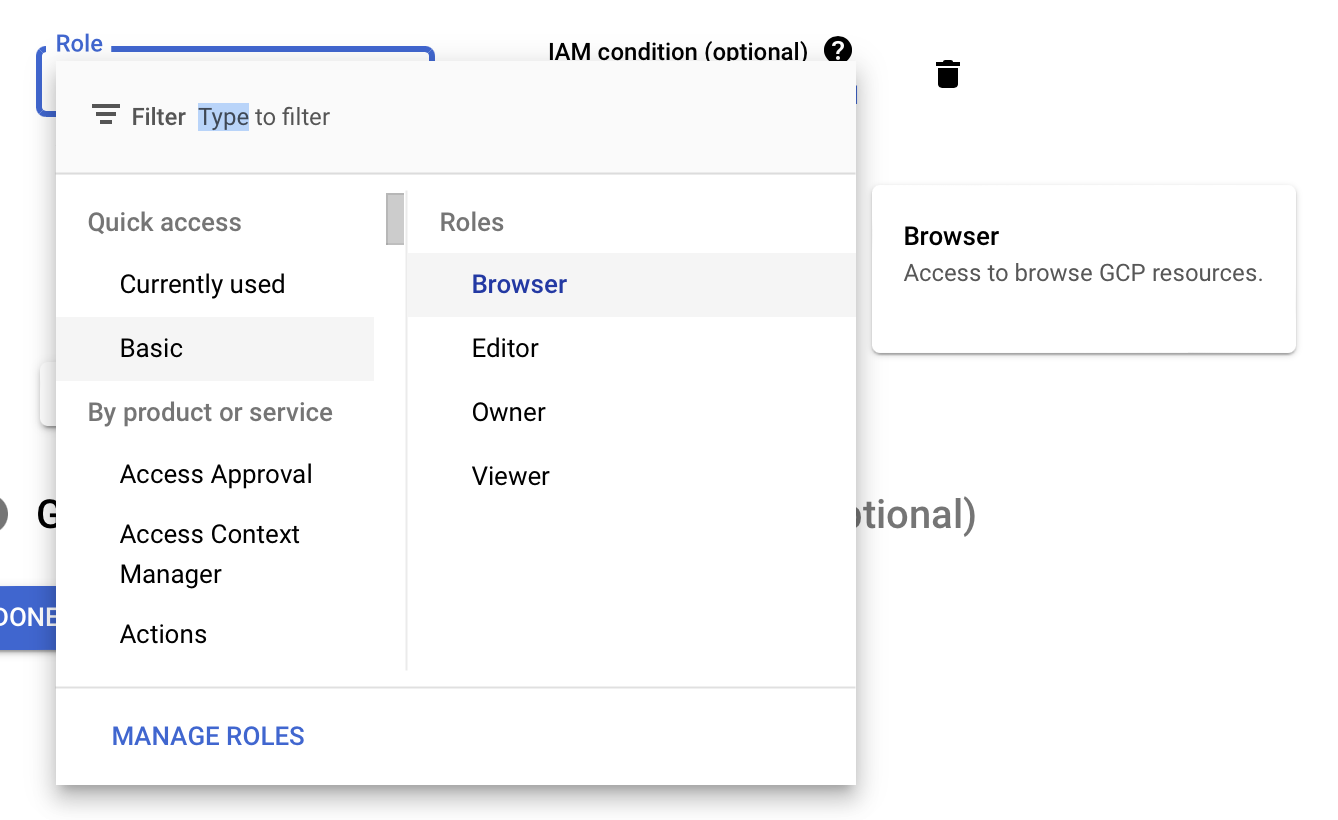
 3. Under the Select a role dropdown, choose Basic and select Browser, then click Done.
 4. Click the three dots and then Manage keys.
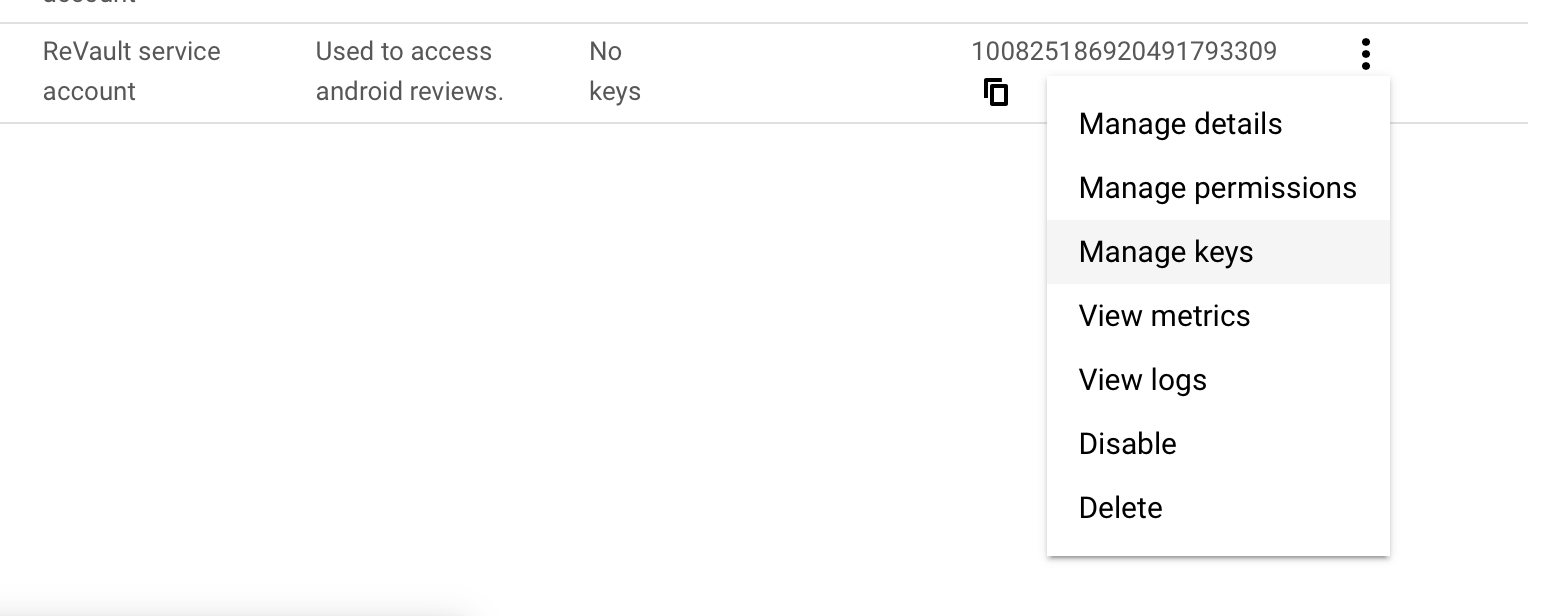 From Add Key select Create new key.
 Select JSON and then Create.
5. You should then get a message telling you Private key saved to your computer and the private key should begin downloading. Click Close on the dialog.
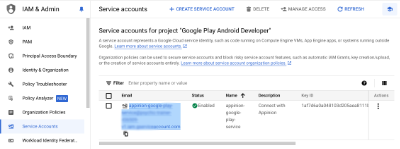
6. Return to the Service Account main page and copy the user email address for the service account.
Select JSON and then Create.
5. You should then get a message telling you Private key saved to your computer and the private key should begin downloading. Click Close on the dialog.
6. Return to the Service Account main page and copy the user email address for the service account.