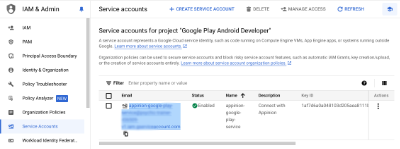
Create a Google Cloud Project
- Select Menu - IAM & Admin - Create a Project and enter the Project Name. Then hit the Create button.
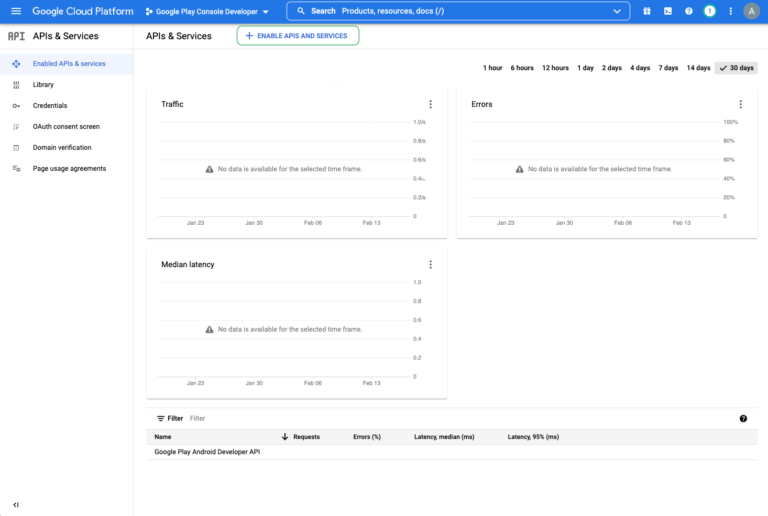
Search APIs
Search for the following API’s and make sure they are all ENABLED: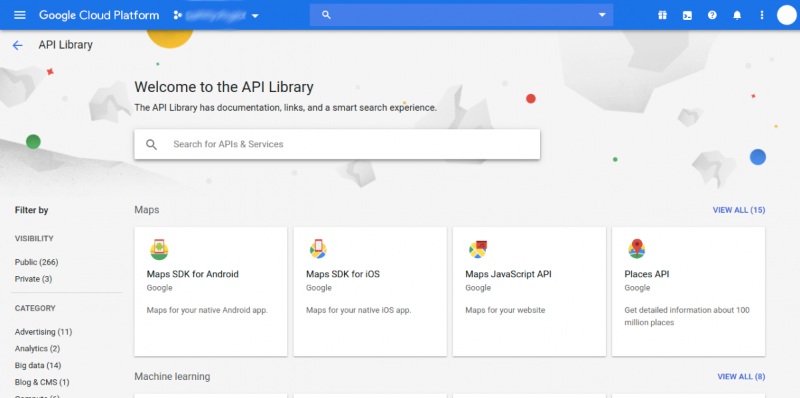
- **Google Cloud APIs **(lets us authenticate you)
- **Google Cloud Storage **(allows us to access historical review data)
- **Google Cloud Storage JSON API **(also allows us to access historical review data)
- **Google Play Android Developer **(allows us to access current review data)
Create a Service Account
-
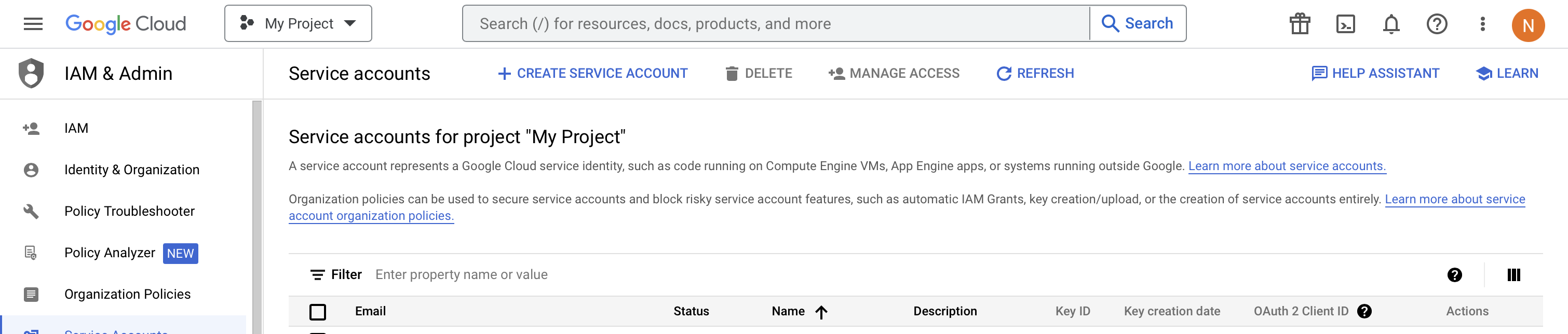
Select Menu - IAM & Admin - Service accounts and hit Create Service Account.
-
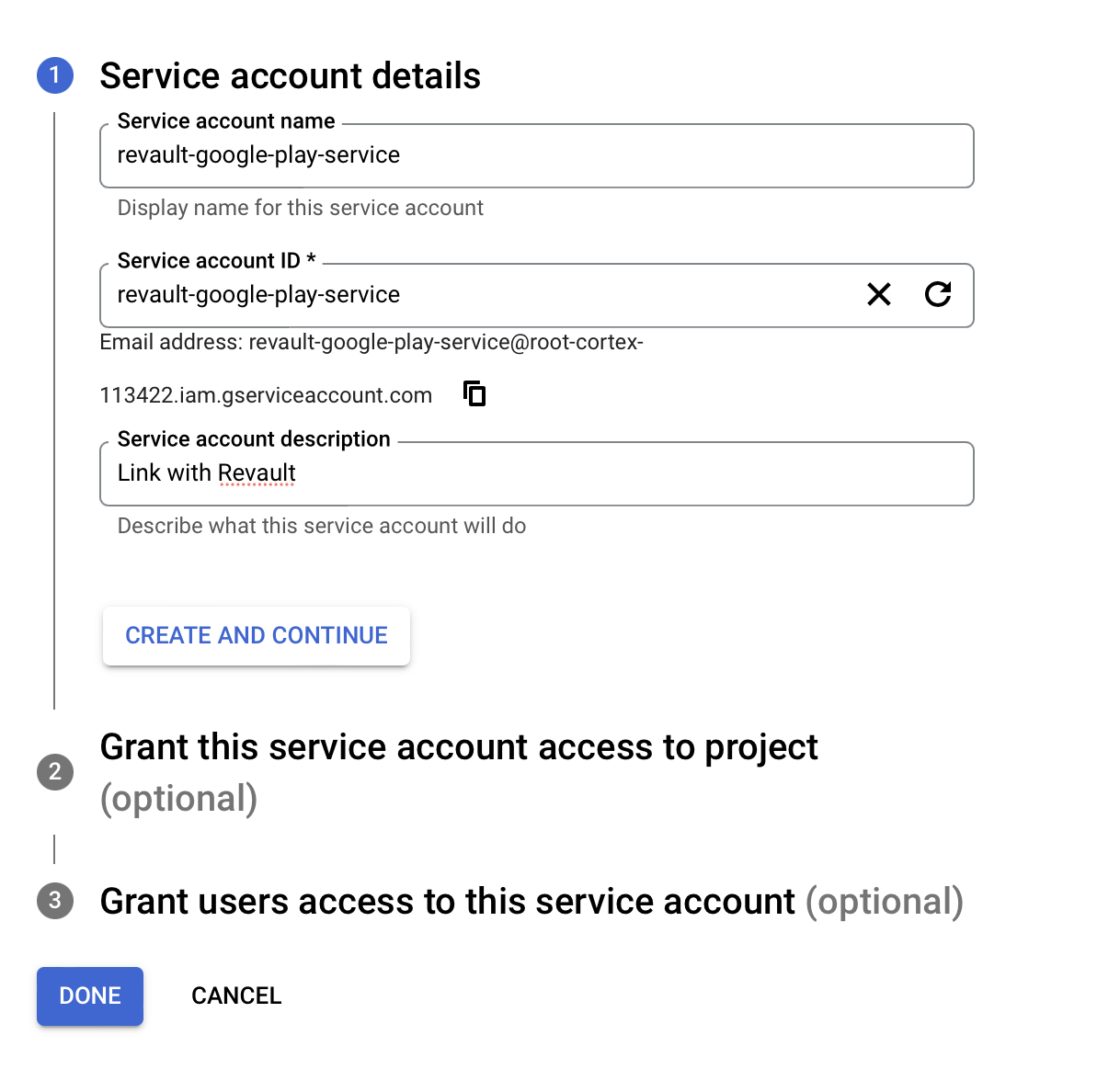
Give the service account a name (this can be anything you want, but it’s a good idea to name it something to do with Appinion so you know what it is in future), and then click Create.
-
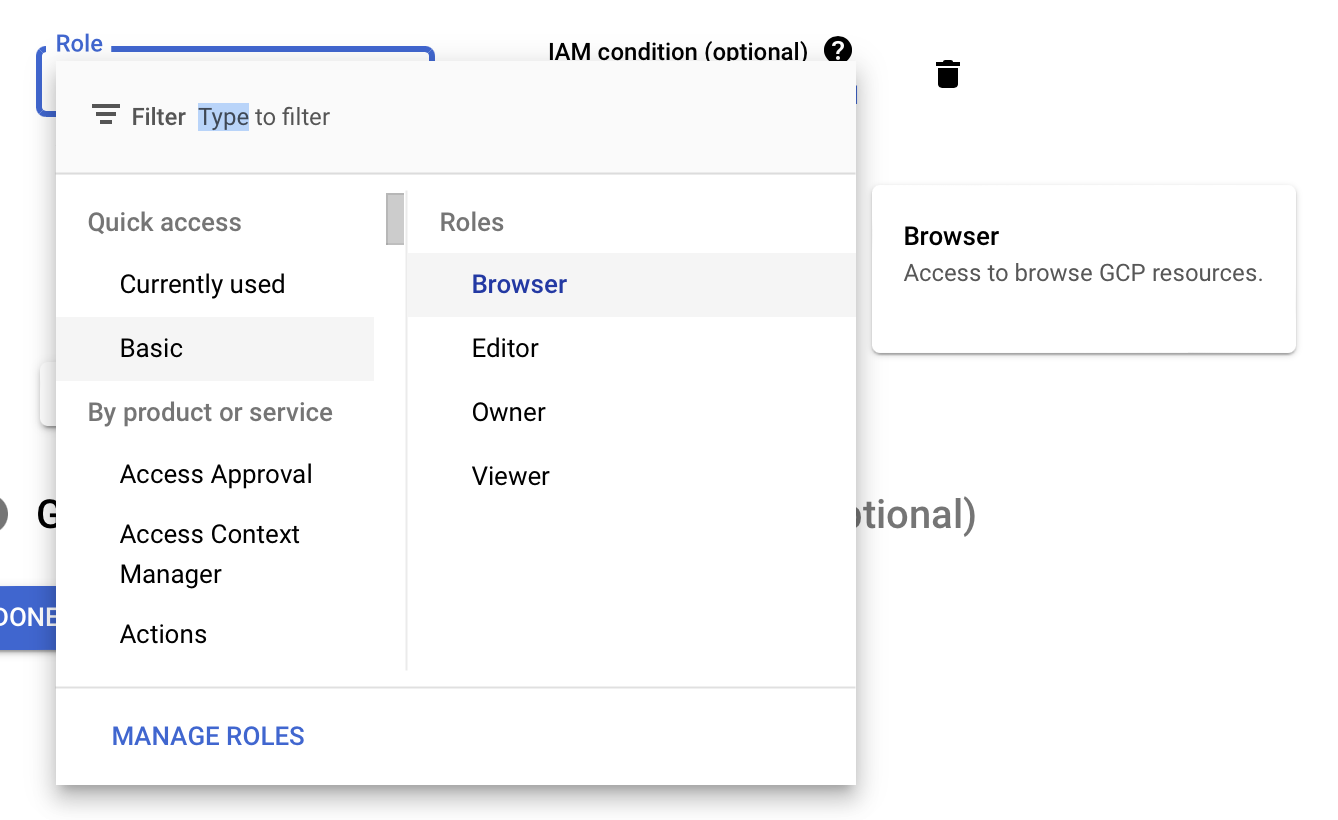
Under the Select a role dropdown, choose Basic and select Browser, then click Done.
-
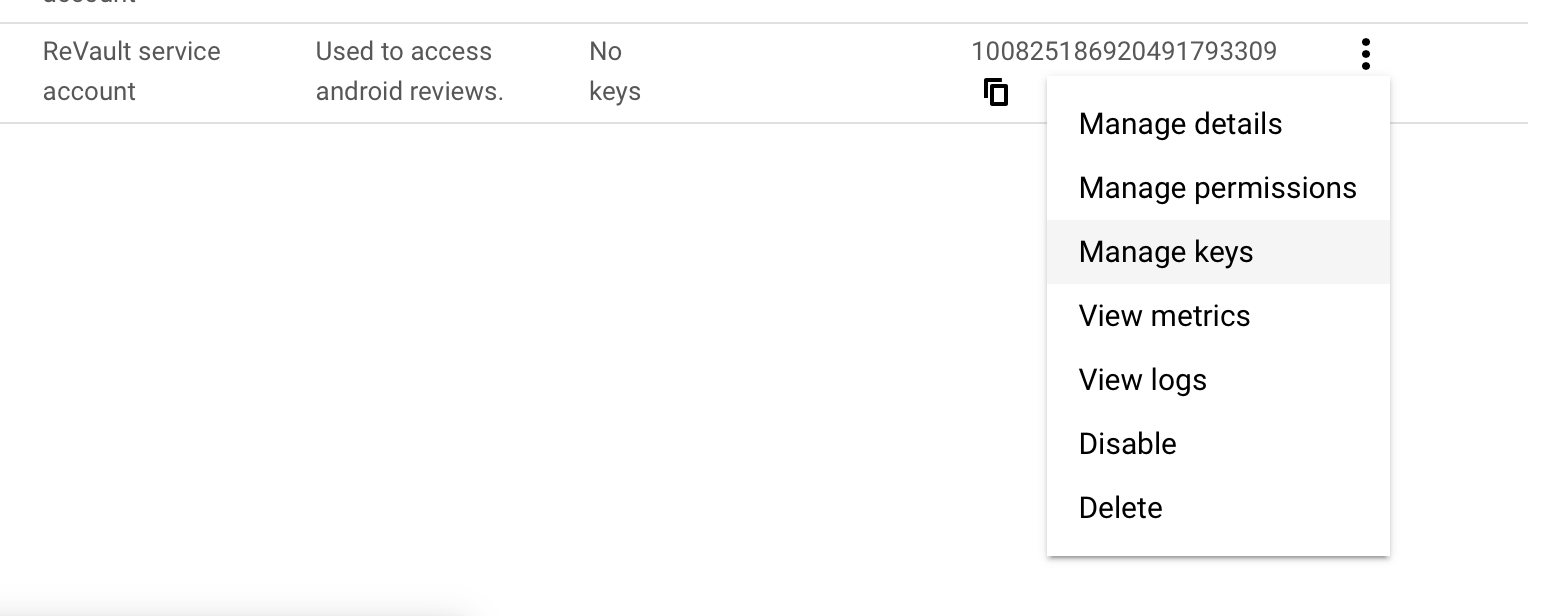
Click the three dots and then Manage keys.

-
You should then get a message telling you Private key saved to your computer and the private key should begin downloading. Click Close on the dialog.
-
Return to the Service Account main page and copy the user email address for the service account.