Granting access
Back in your Google Play Console, select Menu - Users and PermissionsHit the Invite new users button. Paste the email you copied from the Service Account page then scroll to Account Permissions.
Account Permissions
Uncheck all except: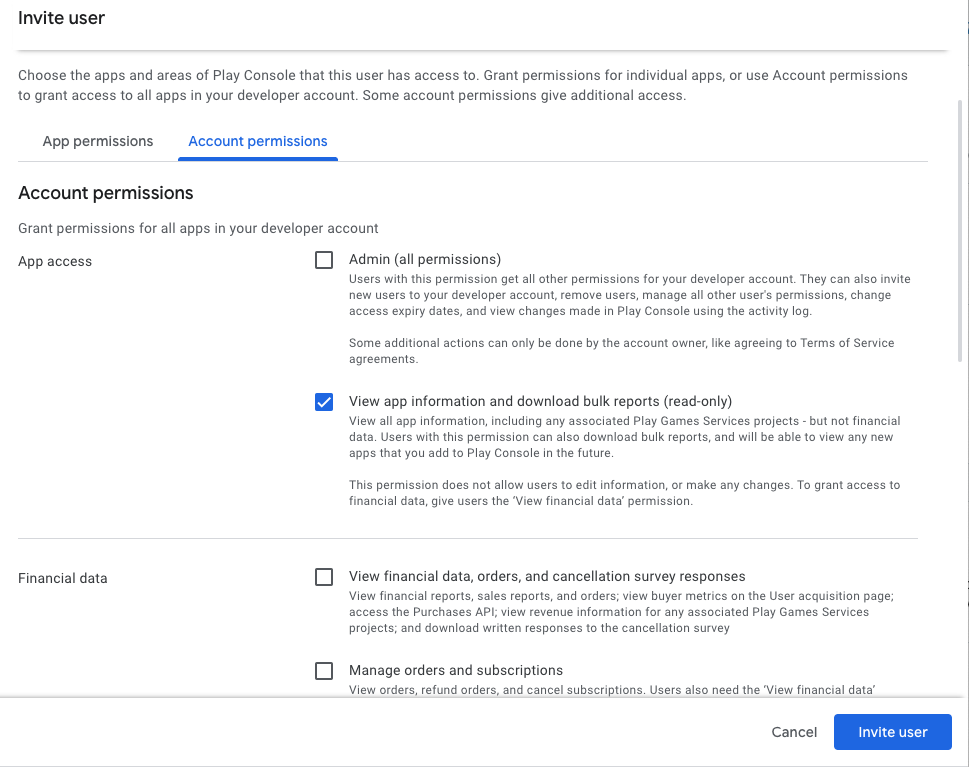
- View app information and download bulk reports (read-only) – so you’re only giving the Visibility permission to Appinion. This allows us to access the data in the Reports section of your Console account, which is where we obtain the historical review data.
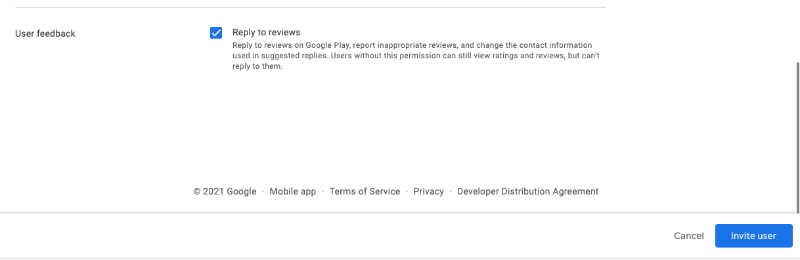
- Reply to reviews – so you can reply from within Appinion.
Complete the connection
Package Id
The Package Id is available on your Play Developer Console and should look like this com.xxx.yourappnameBucket Id
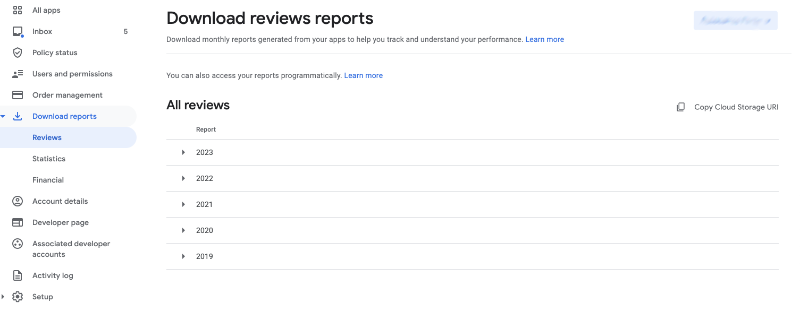
Head back to your Play Developer Console and navigate to Download reports from the left menu. Click into Reviews and select your app from the right.Click on Copy Cloud Storage URI.